What is a screen recorder?
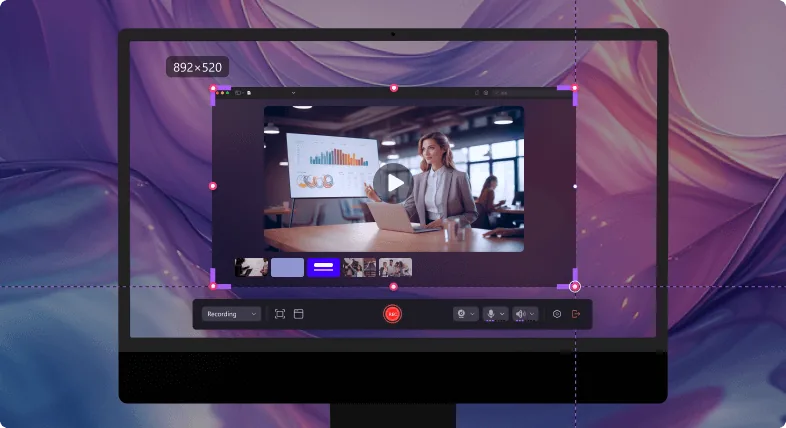
A screen recorder is an application that captures the video output of a computer or phone display, usually with audio from the system and the microphone, and saves it as a video file. It can record the full screen, a single window or a chosen region, normally at 30 or 60 frames per second. The most common output is H.264 video with AAC audio in an MP4 file, which plays on almost every device. A screen recorder is also called screen capture software, a screencast tool or a desktop recorder.
Some are built into the operating system, some are desktop programs and some run in a web browser. They all do the same basic job: turn a moving display into a file you can edit, share or archive. The right tool is the one that matches your device, your audio needs and how long you plan to record.
How a screen recorder works
Every recorder follows three stages: capture, encode and save.
- Capture. The operating system hands frames of the display to the app. Windows exposes the Desktop Duplication and Windows Graphics Capture interfaces, and macOS provides ScreenCaptureKit.
- Encode. The frames are compressed into video, usually H.264. A hardware encoder on the graphics card (NVIDIA NVENC, AMD AMF, Intel Quick Sync or Apple VideoToolbox) does this with little CPU load. Software encoding on the CPU works too, but costs more performance.
- Save. Video and audio are written into a container such as MP4 or MKV.
Bitrate decides file size. At 1080p and 30 FPS, a bitrate of 8 Mbps creates about 60 MB per minute. At 1080p and 60 FPS, 12 Mbps creates about 90 MB per minute, or roughly 5.4 GB per hour. Knowing these numbers helps you plan disk space before a long session.
Types of screen recorder
Four types cover almost every recorder you will meet. The table shows what each does best and where it falls short.
| Type | Examples | Best for | Main limitation |
|---|---|---|---|
| Built-in recorder | Xbox Game Bar and Snipping Tool (Windows), Shift+Command+5 (macOS), Screen Recording in iOS Control Center | Quick clips with no install | Few options for audio, regions and editing |
| Desktop screen recorder | OBS Studio, ShareX, Aura | Tutorials, gameplay and long sessions | Needs installation and some setup |
| Browser-based recorder | Loom and similar web tools | Fast sharing by link, nothing to install | Needs internet; free plans often cap length or quality |
| Mobile recorder | iOS Screen Recording, Android built-in recorder | App demos and phone bug reports | Records the phone only |
How to choose a screen recorder
Match the tool to the job, then check these six points.
- Capture area. Full screen, window and region should all be available.
- Audio sources. Look for system audio and the microphone as separate tracks.
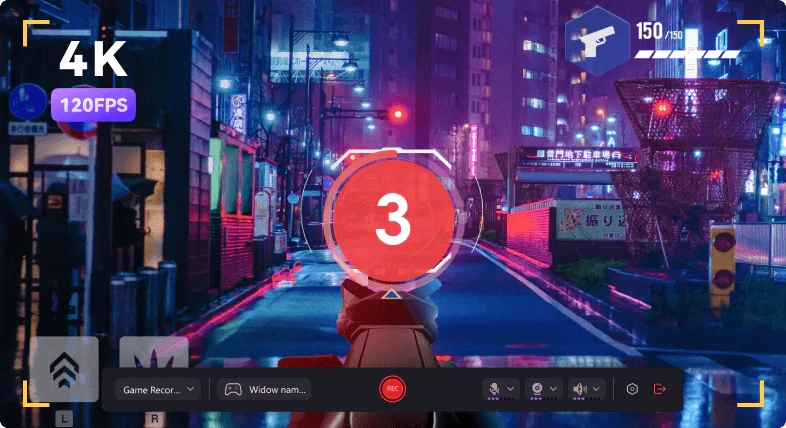
- Frame rate and resolution. 30 FPS suits tutorials; 60 FPS suits games. 1080p is the usual baseline, with 4K as an option.
- Performance. Hardware encoding keeps frame rates steady while you record.
- Output format. MP4 with H.264 plays everywhere, including YouTube, Discord and Microsoft Teams.
- Limits. Check for watermarks, time caps and export restrictions.
For a tutorial, pick 1080p at 30 FPS with a microphone track. For gameplay, pick 1080p at 60 FPS with hardware encoding. For a meeting, 720p or 1080p at 30 FPS is enough, and files stay between 30 and 45 MB per minute.
Free vs paid screen recorders
Free options are strong. Xbox Game Bar, the Windows 11 Snipping Tool, macOS Shift+Command+5, OBS Studio, ShareX and Aura cost nothing and add no watermark. Paid tools usually add built-in editing, cloud sharing, team features and support.
Before you commit to any recorder, test it with a ten-second clip and look for a watermark, a time limit or low export quality. Those three limits are where free trials most often hide a paywall.
Screen recorder for Windows
Windows already includes two tools: Xbox Game Bar records one app window, and the Windows 11 Snipping Tool records a region. Neither records the whole desktop with full audio control. For that, use a dedicated screen recorder.
Our pick is Aura, a free screen recorder for Windows 10 and 11. It records the full screen, a window or a custom region, adds a webcam overlay, captures system audio and the microphone, and saves MP4 files with no watermark. Download Aura, the free screen recorder, and start recording in under a minute.
Want the Windows-specific detail? Our screen recorder for PC guide covers tested settings, a tool comparison and a storage calculator.
How to use a screen recorder
- Close apps and silence notifications so nothing private appears on screen.
- Open your recorder and choose the capture area: full screen, window or region.
- Switch on system audio, the microphone or both, and set 1080p at 30 or 60 FPS.
- Press record, wait for the countdown and do the task you want to show.
- Stop the recording, trim the start and end, and save the MP4 file.
Record a ten-second test first. It confirms that video and audio are both present before you commit to a long take. When you are ready, download the Aura screen recorder and try it.
Common problems and fixes
- Choppy video. Switch to hardware encoding, record to an SSD and lower the frame rate from 60 to 30 FPS.
- Black screen. Update your graphics driver. Protected video, such as some streaming services, may also record as black by design.
- No sound. Check that system audio or the microphone is enabled and not muted in the recorder or in Windows sound settings.
- Huge files. Lower the bitrate to 8 Mbps for 1080p30, or trim the clip before sharing.
Privacy and legal basics
A recorder can capture more than you intend, including open email, chat windows, passwords in autofill and file paths. Replay each clip once before you share it, and record a single window or region when you can.
Recording your own screen is fine. Recording other people, private calls or streamed films may need consent or breach a service's terms, and some regions require every participant to agree. Tell people before you record a meeting, and read our privacy policy to see what this site collects.
Screen recorder frequently asked questions
What is the best screen recorder?
The best screen recorder depends on the job. Built-in tools such as Xbox Game Bar or macOS Shift+Command+5 are fastest for quick clips, OBS Studio suits streaming and multi-source scenes, and a one-click desktop screen recorder such as Aura suits tutorials and demos.
Is there a free screen recorder without a watermark?
Yes. Xbox Game Bar, the Windows 11 Snipping Tool, macOS Shift+Command+5, OBS Studio, ShareX and Aura are free and add no watermark. Check the limits of browser-based tools, because free plans often cap video length or quality.
Can a screen recorder record audio?
Yes. Most tools capture system audio, the microphone or both. Record them as separate tracks when possible, then run a five-second test clip to confirm the levels before a long take.
Does a screen recorder slow down your computer?
Only slightly if it uses hardware encoding (NVENC, AMD AMF or Intel Quick Sync). Software encoding on the CPU costs more. Close background apps and record to an SSD to avoid dropped frames.
Is it legal to use a screen recorder?
Recording your own screen is legal almost everywhere. Recording other people, private calls or copyrighted streams can need consent or breach terms of service, and some regions require every participant to agree. Always tell people before you record a meeting.
How do I record my screen on Windows?
Press Win+Alt+R in an app to record with Xbox Game Bar, or Win+Shift+R in Windows 11 to record a region with the Snipping Tool. For the full desktop, use a dedicated tool; see our screen recorder for PC guide.